
OpenClaw Tutorial - Build an AI Agent That Manages Your Bills and Sends You a Daily Briefing on WhatsApp
A step-by-step tutorial with OpenClaw - from installation to a working morning briefing on your phone

Hey all,
this week the blog post if more hands on and practical. with all the buzz around OpenClaw, here is a short tutorial on how to use it (with a bit of a background).
Everyone has missed a bill, forgotten to renew a subscription, or lost track of an appointment buried somewhere between email, WhatsApp, and a PDF they downloaded three weeks ago. Not because they are careless, but because life admin is scattered across too many places and none of it is important enough to remember - until it suddenly is.
Now instead of this, think about an assistant living inside your WhatsApp notices a renewal email arrive, adds “renew car insurance by Thursday” to your task list, and sends you a nudge on Wednesday evening. If you reply “handle it,” it opens the insurance portal in a browser, fills in your details, and asks for one confirmation before submitting.
You can build this today with OpenClaw, an open-source AI agent framework that runs on your own machine. This post walks through every step - from installation to a working morning briefing - with the actual commands and configuration files you need to get it running.
Why Life Admin Is the Perfect First Agent
Everyone has life admin. It does not matter if you are a developer, a teacher, a freelancer, or a parent. Bills, appointments, subscriptions, warranty claims, school forms, tax documents, prescription refills. The list never ends, and none of it is hard. It is just there, constantly, draining a little bit of your attention every day.
This makes it an ideal job for an autonomous agent. The tasks are repetitive. The stakes on each individual task are low. The information is scattered across email, chat messages, PDFs, and websites. And most of it follows patterns: something arrives, you need to read it, decide if it matters, and either act on it or schedule it for later.
OpenClaw fits this because it was designed to live inside chat apps (WhatsApp, Telegram, Slack, Discord), maintain long-term memory, browse the web, handle files, and take action through connected tools. Instead of yet another app to check, your assistant meets you where you already spend your time.
What OpenClaw Is (60-Second Version)
A language model like Claude or GPT is a brain with no body. It can reason and write, but it cannot remember yesterday, open a website, or send you a message at 8 AM.
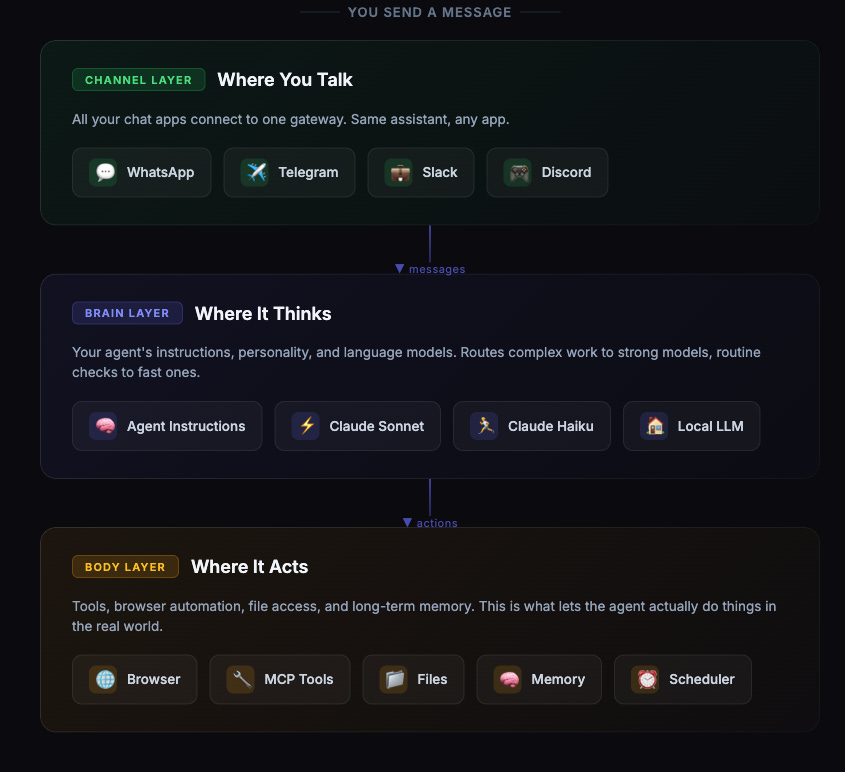
OpenClaw gives that brain a body. It wraps any language model in an environment with long-term memory, tool access, browser control, file handling, and connections to your actual chat apps. Messages flow in through a gateway, OpenClaw builds context from your conversation history and available tools, sends everything to the model, executes whatever actions the model requests, and delivers the response back to your chat.
Three layers make it work:
Channel layer. WhatsApp, Telegram, Slack, and other apps all connect to one gateway. You talk to the same assistant from any app.
Brain layer. Your agent sits here with its instructions, personality, and access to one or more language models - cloud or local.
Body layer. Tools, browser automation, file access, and long-term memory live here. This is what lets the agent actually do things.
The piece that makes a life admin agent possible: OpenClaw can run in the background, receive triggers, execute scheduled tasks, and remember everything across sessions. It does not just answer when asked. It watches, reminds, and acts.
What You Will Need
Before we start, make sure you have:
Node.js 22 or later (the installer can handle this, but having it ready saves time)
An Anthropic API key for Claude (sign up at console.anthropic.com)
A phone with WhatsApp - your personal account works fine, no business account needed
A machine that stays on - your laptop works for testing; for always-on you will want a server or old desktop (covered at the end)
Step 1: Install OpenClaw
Open your terminal and run one command:
curl -fsSL https://openclaw.ai/install.sh | bashOn Windows, use PowerShell instead:
iwr -useb https://openclaw.ai/install.ps1 | iexThe installer downloads everything, walks you through initial setup, and creates your config file and workspace directory. Once it finishes, verify the installation:
openclaw doctor
openclaw status
You should see green checks. If doctor flags anything missing, follow its suggestions before continuing.
After installation, your workspace lives at ~/.openclaw/. The directory looks like this:
~/.openclaw/
  openclaw.json              ← Main configuration file
  credentials/               ← OAuth tokens, API keys
  workspace/
    SOUL.md                  ← Agent personality and boundaries
    USER.md                  ← Info about you
    AGENTS.md                ← Operating instructions
    HEARTBEAT.md             ← What to check periodically
    MEMORY.md                ← Long-term curated memory
    memory/                  ← Daily memory logs
  cron/jobs.json             ← Scheduled tasks
Every file that shapes your agent’s behavior is a plain Markdown file you can open in any editor. No black boxes.
Step 2: Write Your Agent’s Job Description
Before configuring anything, write a plain-language job description for your agent. This is not busywork - OpenClaw loads these files into every single conversation, so they directly shape behavior. Think of them as the agent’s operating manual.
Create three files in your workspace.
~/.openclaw/workspace/SOUL.md defines who the agent is:
# Soul

You are a personal life admin assistant. You are calm, organized,
and concise.

## What you do
- Track bills, appointments, deadlines, and tasks from my messages
- Send a morning briefing every day with what needs attention
- Use browser automation to check portals and download documents
- Fill out simple forms and send me a screenshot before submitting

## What you never do
- Submit payments without my explicit confirmation
- Delete any files, messages, or data
- Share personal information with third parties
- Make decisions on legal or medical matters — always ask me
- Send messages to anyone other than me

## How you communicate
- Keep messages short. Bullet points for lists.
- For anything involving money or deadlines, quote the exact source
  and ask for confirmation before acting.
- Batch low-priority items into the morning briefing.
- Only send real-time messages for things due today.
~/.openclaw/workspace/USER.md tells the agent about you:
# User Profile

- Name: [Your name]
- Timezone: America/New_York
- Key accounts: electricity (ConEd), internet (Spectrum),
  insurance (State Farm)
- Morning briefing time: 8:00 AM
- Preferred reminder time: evening before something is due
~/.openclaw/workspace/AGENTS.md sets operational rules:
# Operating Instructions

## Memory
- When you learn a new recurring bill or deadline, save it to MEMORY.md
- Track bill amounts over time so you can flag unusual changes

## Tasks
- Confirm tasks with me before adding them
- Re-surface tasks I have not acted on after 2 days

## Documents
- When I share a bill, extract: vendor, amount, due date, account number
- Save extracted info to the daily memory log

## Browser
- Always screenshot after filling a form — send it before submitting
- Never click "Submit," "Pay," or "Confirm" without my approval
- If a website looks different from expected, stop and ask me
Notice the boundaries. The agent can read, organize, remind, and prepare. But it cannot spend money, delete data, or act on sensitive matters without asking. These limits are what let you sleep while the agent works.
Step 3: Connect WhatsApp
This is where the assistant comes alive. OpenClaw uses the Baileys library to connect to WhatsApp Web - your assistant appears as your own number’s session, like opening WhatsApp Web on a new browser.
Open ~/.openclaw/openclaw.json and configure the WhatsApp channel:
{
  "auth": {
    "token": "pick-any-random-string-here"
  },

  "channels": {
    "whatsapp": {
      "dmPolicy": "allowlist",
      "allowFrom": ["+15551234567"],
      "groupPolicy": "disabled",
      "sendReadReceipts": true,
      "mediaMaxMb": 50
    }
  }
}
Replace +15551234567 with your actual phone number in international format. The allowlist policy means the agent only responds to your messages - everyone else is ignored.
Now start the gateway and link your phone:
openclaw gateway
openclaw channels login --channel whatsapp
A QR code appears in your terminal. Open WhatsApp on your phone, go to Linked Devices, and scan it. Then approve the pairing:
openclaw pairing list whatsapp
openclaw pairing approve whatsapp <CODE>
Send yourself a test message. The agent should reply. If nothing happens, run openclaw status and check the logs.
Step 4: Configure the Models
A hybrid model strategy keeps costs low and quality high. Route the heavy thinking - understanding a medical bill, summarizing a lease agreement - to a strong cloud model. Route the lightweight background checks to something cheaper.
Add this to your openclaw.json:
{
  "agents": {
    "defaults": {
      "model": {
        "primary": "anthropic/claude-sonnet-4-5",
        "fallbacks": ["anthropic/claude-haiku-3-5"]
      },
      "heartbeat": {
        "every": "30m",
        "model": "anthropic/claude-haiku-3-5",
        "target": "last",
        "activeHours": {
          "start": 7,
          "end": 23,
          "timezone": "America/New_York"
        }
      }
    },
    "list": [
      {
        "id": "admin",
        "default": true,
        "name": "Life Admin Assistant",
        "workspace": "~/.openclaw/workspace",
        "identity": { "name": "Admin" }
      }
    ]
  }
}
Set your API key in your shell profile (~/.zshrc or ~/.bashrc):
export ANTHROPIC_API_KEY="sk-ant-your-key-here"Reload and restart:
source ~/.zshrc
openclaw gateway
Sonnet handles the real reasoning. Haiku handles the frequent background checks at a fraction of the cost. If either fails, OpenClaw automatically falls back to the next model in the list.
Optional: keep sensitive data off the cloud entirely. If you run Ollama locally, you can add a local model and instruct the agent (in SOUL.md) to use it for anything containing medical records or full account numbers:
{
  "agents": {
    "defaults": {
      "models": {
        "local": {
          "provider": {
            "type": "openai-compatible",
            "baseURL": "http://localhost:11434/v1",
            "modelId": "llama3.1:8b"
          }
        }
      }
    }
  }
}Step 5: Give It Hands
An assistant that can only talk is just a chatbot. Your life admin agent needs to interact with real systems.
Enable the browser
This is what lets the agent open portals, check balances, and fill forms:
{
  "browser": {
    "enabled": true,
    "headless": false,
    "defaultProfile": "openclaw"
  }
}
Test it:
openclaw browser start
openclaw browser open https://example.com
openclaw browser snapshot
openclaw browser stop
The snapshot command returns an AI-readable tree of every element on the page, each tagged with a reference ID. The agent uses these refs to click buttons, type in fields, and navigate - no CSS selectors or brittle scripts. It reasons about what it sees, the same way you would.
Connect external tools via MCP
OpenClaw supports the Model Context Protocol - a universal adapter between your agent and external services. Each tool is a small server your agent can call:
{
  "agents": {
    "defaults": {
      "mcpServers": {
        "filesystem": {
          "command": "npx",
          "args": [
            "-y",
            "@modelcontextprotocol/server-filesystem",
            "/home/you/documents/admin"
          ]
        },
        "google-calendar": {
          "command": "npx",
          "args": ["-y", "@anthropic/mcp-server-google-calendar"],
          "env": {
            "GOOGLE_CLIENT_ID": "${GOOGLE_CLIENT_ID}",
            "GOOGLE_CLIENT_SECRET": "${GOOGLE_CLIENT_SECRET}"
          }
        }
      },
      "tools": {
        "allow": [
          "exec", "read", "write", "edit",
          "browser", "web_search", "web_fetch",
          "memory_search", "memory_get",
          "message", "cron"
        ],
        "deny": ["gateway"]
      }
    }
  }
}
There are over a thousand community MCP servers - Google Drive, Todoist, Notion, Slack, Gmail, and more. Add only what you need.
What a browser task looks like in practice
You say: “Check how much my phone bill is this month.”
Here is what happens:
The agent opens your carrier’s portal
It takes a snapshot - an AI-readable map of every element on the page
It finds the login fields, types your credentials, clicks Sign In
It navigates to the billing section
It reads the amount and replies:
“Your phone bill for January is $47.30, due February 15. Want me to add a reminder?”
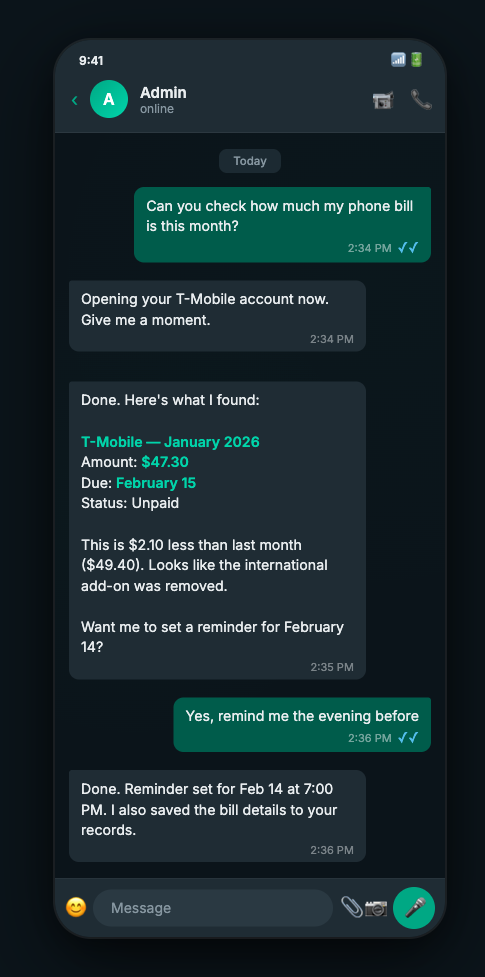
No scripts to maintain. No API to integrate. The agent just reads the page and acts, like you would - except it never forgets to check.
Step 6: Set Up the Morning Briefing
This is the feature that makes the agent feel like a real assistant instead of a reactive chatbot.
Create a cron job that runs every morning:
openclaw cron add \
  --name "Morning Briefing" \
  --cron "0 8 * * *" \
  --tz "America/New_York" \
  --session isolated \
  --message "Compile the morning briefing. Check: (1) calendar events for today and tomorrow, (2) tasks due this week, (3) any items captured in the last 24 hours, (4) anything flagged as needing a decision. Format as a single concise WhatsApp message." \
  --announce \
  --channel whatsapp \
  --to "user:+15551234567"
Verify it was created:
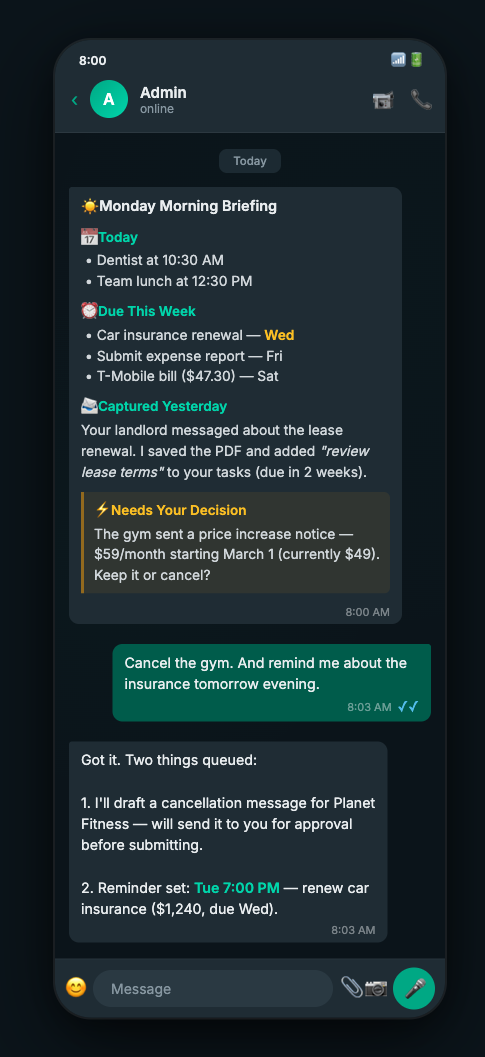
openclaw cron listEvery morning at 8 AM, the agent spins up a fresh session, pulls your calendar, checks your task list, scans recent memory, and sends you a single message.
One message. Everything you need to know. No digging through six different apps.
Add continuous monitoring between briefings
The morning briefing runs once a day. For the hours in between, the heartbeat system keeps watch. You already configured it to run every 30 minutes in Step 4. Now tell it what to look for by creating ~/.openclaw/workspace/HEARTBEAT.md:
# Heartbeat Checklist

On each check:
1. Scan recent messages for bills, appointments, or deadlines.
   If found, capture in today's memory log.
2. If anything is due today or tomorrow and I have not acknowledged
   it, send a single nudge.
3. If nothing needs attention, return HEARTBEAT_OK.
The HEARTBEAT_OK response is suppressed - you only hear from the agent when something actually matters. And because it uses the cheap Haiku model, each check costs fractions of a cent.
Step 7: Seed the Memory
OpenClaw’s memory is what makes this agent smarter the longer you use it. Everything is stored as plain Markdown files on your disk.
Two layers work together:
MEMORY.md- Long-term curated facts loaded every session. Your recurring bills, annual deadlines, known patterns.memory/YYYY-MM-DD.md- Daily logs the agent appends to. Today’s and yesterday’s are auto-loaded.
Seed ~/.openclaw/workspace/MEMORY.md with what you already know:
# Recurring Bills

| Bill | Amount | Due | Auto-pay |
|------|--------|-----|----------|
| Electricity (ConEd) | ~$120 | 15th monthly | No |
| Internet (Spectrum) | $79.99 | 3rd monthly | Yes |
| Car Insurance (State Farm) | $1,240 | March 3 annually | No |
| Gym (Planet Fitness) | $49/mo | 1st monthly | Yes |
| Netflix | $22.99 | 8th monthly | Yes |

# Annual Deadlines

- Tax filing: April 15
- Car registration renewal: September
- Lease renewal: discuss 60 days before Aug 31 end date

# Preferences

- I prefer manual payments over auto-pay where possible
- Remind me about annual renewals 2 weeks in advance
- Flag subscriptions I might want to cancel 1 week before renewal
This gives the agent a running start. As it processes your messages and checks portals over the coming weeks, it fills in the daily logs and updates MEMORY.md on its own. After a month, the briefings get noticeably sharper because the memory is richer.
Step 8: Test the Complete Flow
Before you trust this with real admin, run through four tests.
Test 1 - Task capture. Send a WhatsApp message:
“I just got a notice that my car insurance renewal is due March 3 for $1,240. Can you track this?”
The agent should acknowledge it, save the details to memory, and confirm when it will remind you.
Test 2 - Browser check. Send:
“Can you check my electricity bill on the ConEd website?”
The agent should open the portal, navigate the login, find the billing page, and report back the amount and due date. (For the first run, you may need to help with two-factor authentication. After that, saved cookies handle it.)
Test 3 - Morning briefing. Trigger it manually instead of waiting until tomorrow:
openclaw cron list          # find the job ID
openclaw cron run <jobId>   # run it now
Check WhatsApp - you should receive the briefing within a minute.
Test 4 - Document handling. Send a photo of a bill through WhatsApp. The agent should extract the vendor, amount, and due date, save the info to memory, and offer to create a task.
Step 9: Understand the Real Risks
This is where most guides get vague. Here are the specific things that can go wrong.
The agent misreads something important. Language models can misinterpret a bill amount or miss a deadline buried in legal language. Your SOUL.md already handles this - it requires the agent to quote exact source text and ask for confirmation on anything involving money or deadlines. Verify this is working during your first week.
The agent fills out a form incorrectly. Browser automation is powerful but brittle. Websites change layouts. The agent might put your zip code in the phone number field. Your AGENTS.md already enforces screenshot-before-submit. Never remove that rule. The agent fills everything in, sends you a screenshot, and waits for your “looks good.”
Your personal data reaches cloud providers. When the agent sends your electricity bill to Claude for analysis, that data travels to Anthropic’s servers. If this concerns you, route sensitive analysis to a local model (the optional Ollama setup from Step 4). For most people, the tradeoff is acceptable - Anthropic does not train on API data.
The agent sends too many messages. An overeager assistant that pings you 15 times a day becomes the problem it was supposed to solve. The HEARTBEAT.md instructions enforce batching, and SOUL.md sets the tone. If messages are still too frequent, increase the heartbeat interval from "30m" to "2h" in your config.
You over-trust and stop checking. The most subtle risk. After a few weeks of reliable briefings, you stop verifying. Then it quietly misses something. Keep a weekly habit of spot-checking: send “show me everything due this week with your sources” and verify against your own records.
Step 10: Make It Always-On
Your laptop going to sleep kills the gateway. For a real assistant, you need something that stays awake.
Option A: The daemon. OpenClaw can install itself as a system service that survives reboots:
openclaw onboard --install-daemonOn macOS this creates a launchd service. On Linux, a systemd unit. It reconnects WhatsApp automatically after sleep/wake.
Option B: A cheap VPS. A $5-8/month server (Hetzner, DigitalOcean, Railway) runs the agent 24/7. Set the browser to headless mode since there is no display:
{
  "browser": {
    "enabled": true,
    "headless": true
  }
}
Option C: An old device. A Raspberry Pi 5 or a retired laptop on your home Wi-Fi handles this easily.
Whichever you choose, keep OpenClaw updated - it is actively developed and updates include security patches:
openclaw update --channel stable
Love the practicality of this! Building something that solves a real daily annoyance is honestly the fastest way to understand what agents can and can't do. That said, I'd gently flag that security hardening deserves a prominent spot in any tutorial like this. Giving an agent access to your bills, APIs, and messaging apps is a meaningful attack surface. There are some great guides out there on sandboxing and locking down OpenClaw before running it on a personal machine, worth covering alongside the fun stuff. The more accessible we make agentic AI, the more responsible we need to be about the risks that come with it.
Jesus Baron von Christ! Not ONE WORD ABOUT THE SECURITY RISKS!
DO NOT RUN THIS THING ON YOUR PERSONAL MACHINE WITHOUT RESEARCHING HOW TO LOCK IT DOWN! Every single cybersecurity expert who has looked at this thing has clawed their eyes out (pun intended) at the security risks.
You can lose crypto, you can lose API keys, and worst of all, critical personal information can be stolen. All of these have happened to users.
There are TONS of YouTube videos which will show you how to lock it down. USE THEM!
Here are a couple:
How to Secure OpenClaw - Complete Security Guide with Private Models
https://www.youtube.com/watch?v=jPslceOAbv0
ClawdBot Full Tutorial for Beginners: SECURE Setup Guide
https://www.youtube.com/watch?v=tnsrnsy_Lus
OpenCLaw Security MasterCLass (Complete secure setup and Security) Docker + Sandboxing + Bug Fixes
https://www.youtube.com/watch?v=yelcL_eALnQ
Why Trying to Secure OpenClaw is Ridiculous
https://www.aikido.dev/blog/why-trying-to-secure-openclaw-is-ridiculous
OpenClaw security best practices guide
https://lumadock.com/tutorials/openclaw-security-best-practices-guide
There are more. Do a search on YouTube and Google.
You also did not mention that you can NOT use OpenClaw with a Claude account. Anthropic has confirmed that no third party tool can be used with a Claude account. See their updated legal documents.
Anthropic: No, absolutely not, you may not use third-party harnesses with Claude subs
https://www.theregister.com/2026/02/20/anthropic_clarifies_ban_third_party_claude_access/
"AI influencers" who do not warn consumers of the risks of OpenClaw and proper security hardening practices are doing a disservice to the industry and to their followers.